


Streamerr Video is your cloud control centre for live video, AutoDJ playlists, branding, and social multistreaming. This guide walks through your first login and the channel dashboard.
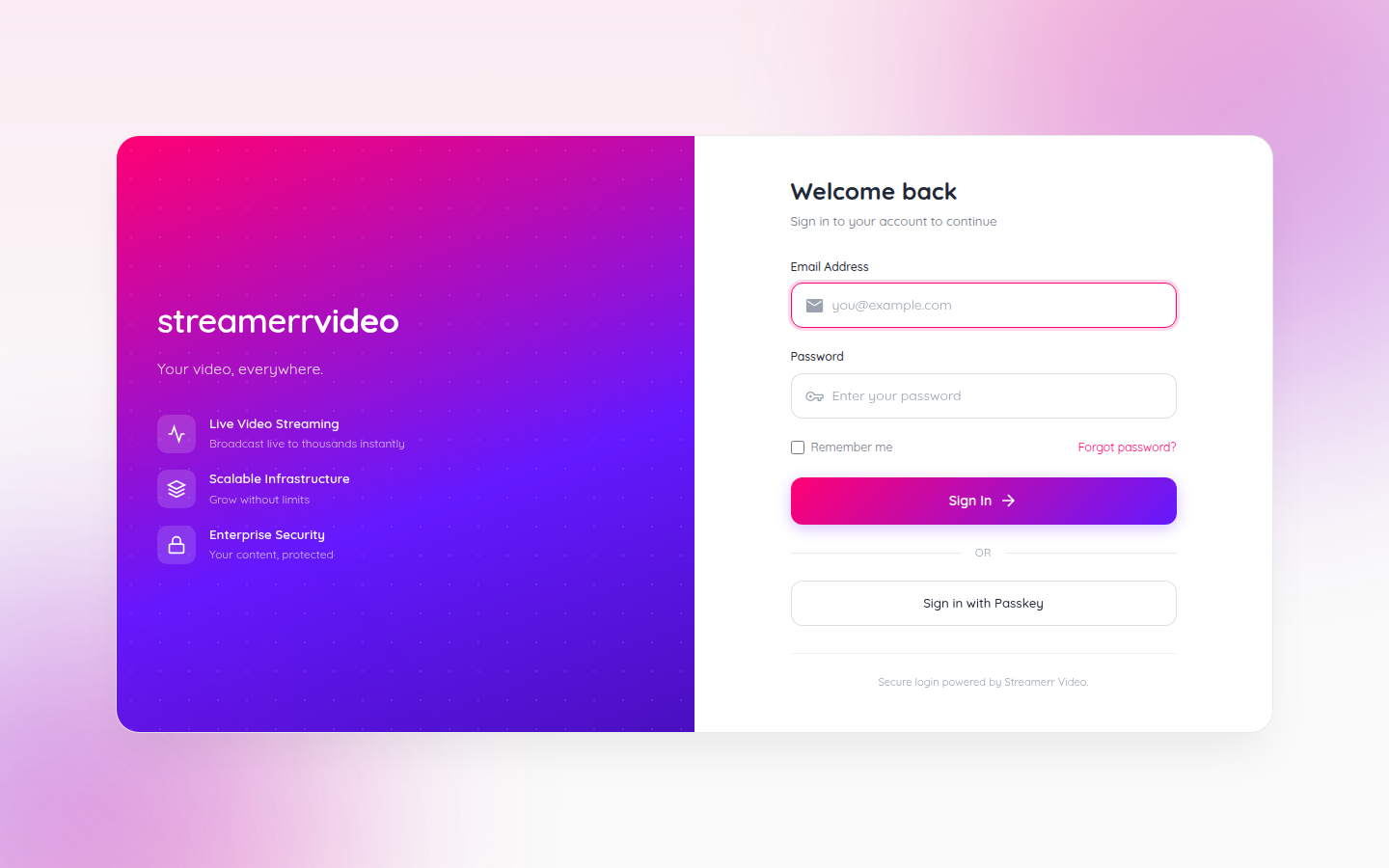
1. Sign in
- Go to https://video.streamerr.co.
- Enter the email and password for your Streamerr Video account.
- Click Sign In.
2. Your account dashboard
After signing in you land on the account dashboard. Here you can see:
- How many channels you have and whether they are online
- Current viewers across your channels
- Quick links to My Account and the Help Centre
- A card for each channel with bandwidth/storage usage and a Manage Channel button
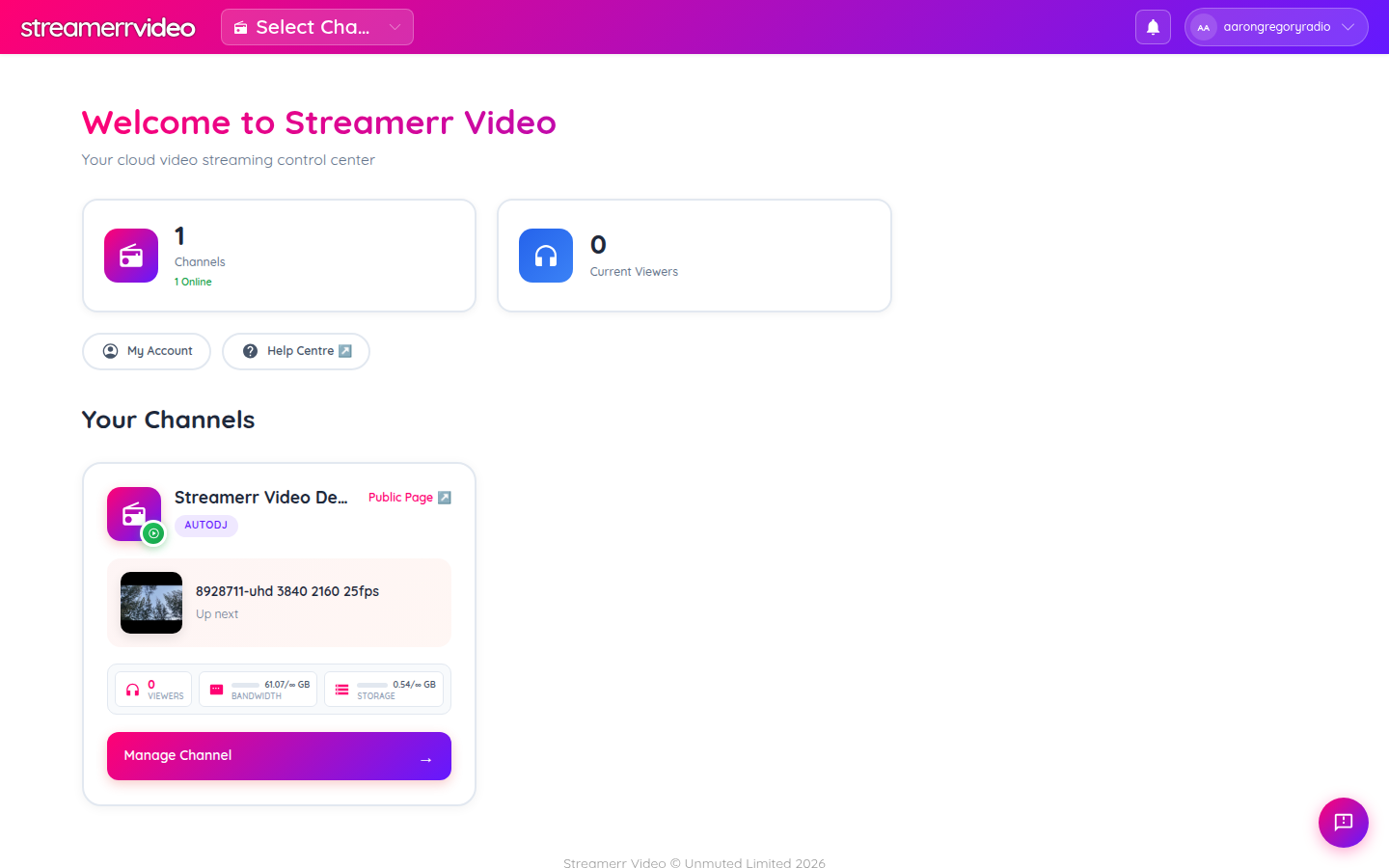
Click Manage Channel on the channel you want to work with.
3. Channel dashboard
Inside a channel you get the full Streamerr Video sidebar:
- Dashboard — status, viewers, bandwidth, storage, and quick actions
- Video Library — upload and organise media
- Playlists — build AutoDJ schedules
- Stream Keys — RTMP details for OBS and other encoders
- Social Media Relay — push out to YouTube, Twitch, Facebook, and more
- Analytics — overview and live viewers
- Utilities — public page, logo overlay, offline image, team, embed player, and more
- Settings — channel profile and preferences
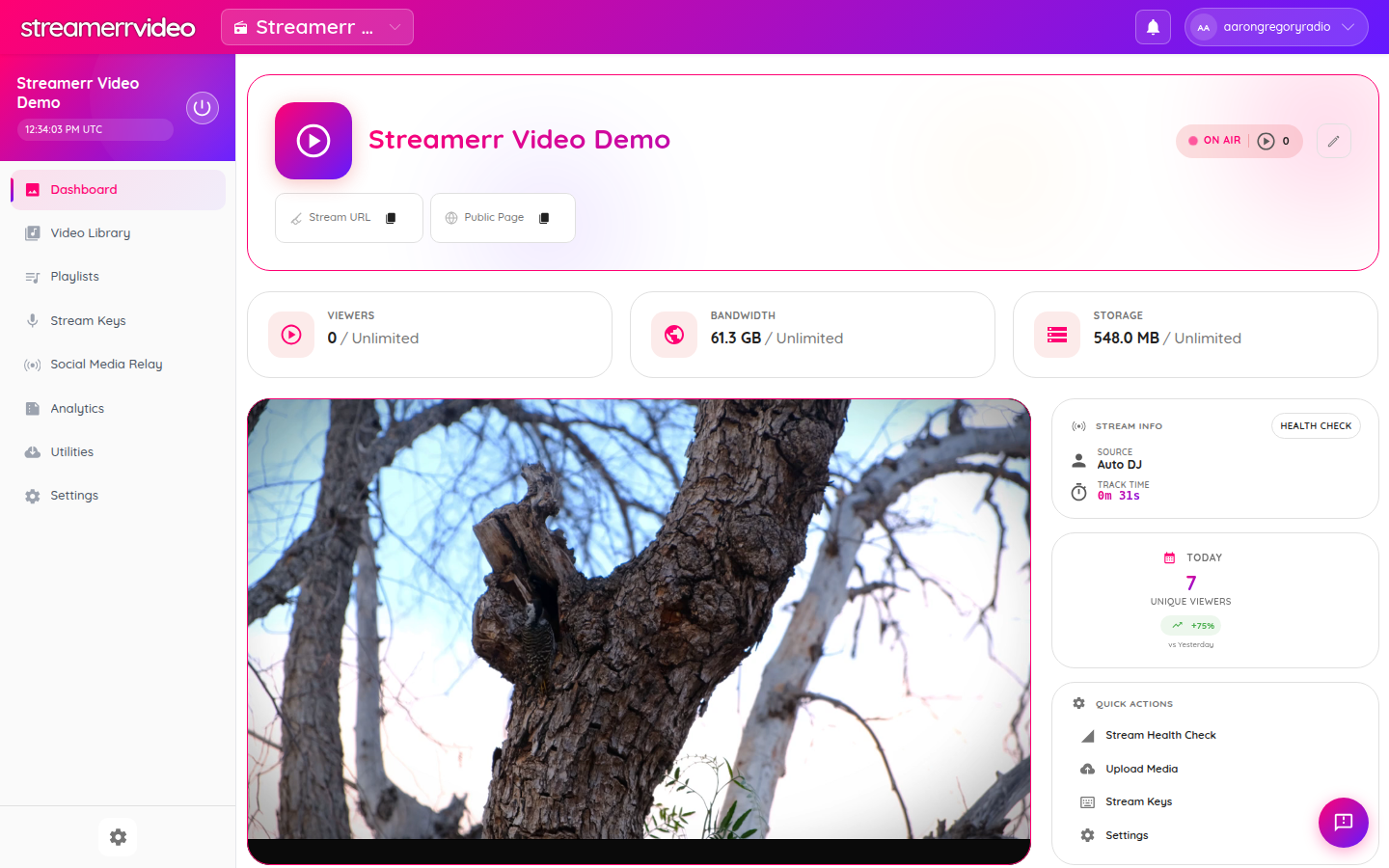
From Quick Actions you can jump straight to Stream Health Check, Upload Media, Stream Keys, or Settings.
What to do next
- Go live with OBS — connect your encoder and start broadcasting
- Video Library & AutoDJ — upload clips and keep the channel on air 24/7
- Scheduling Daily TV Programmes — news, ads, recorded shows, and live windows
- Logo overlay — brand your stream
- Share & embed — public page and website player