


This guide shows how to build a daily TV schedule in Streamerr Video using playlists, timed schedules, promo inserts, and live OBS takeovers.
If you are still learning the dashboard, start with Getting Started and Video Library & AutoDJ, then come back here.
How scheduling works
Streamerr Video does not use a traditional “TV schedule grid” for every clip. Instead:
- You upload content to the Video Library
- You put related clips into Playlists
- Each playlist can have schedule rules (times, days, priority)
- Video AutoDJ plays the right playlist at the right time
- A live OBS broadcast can take over the channel when you go live
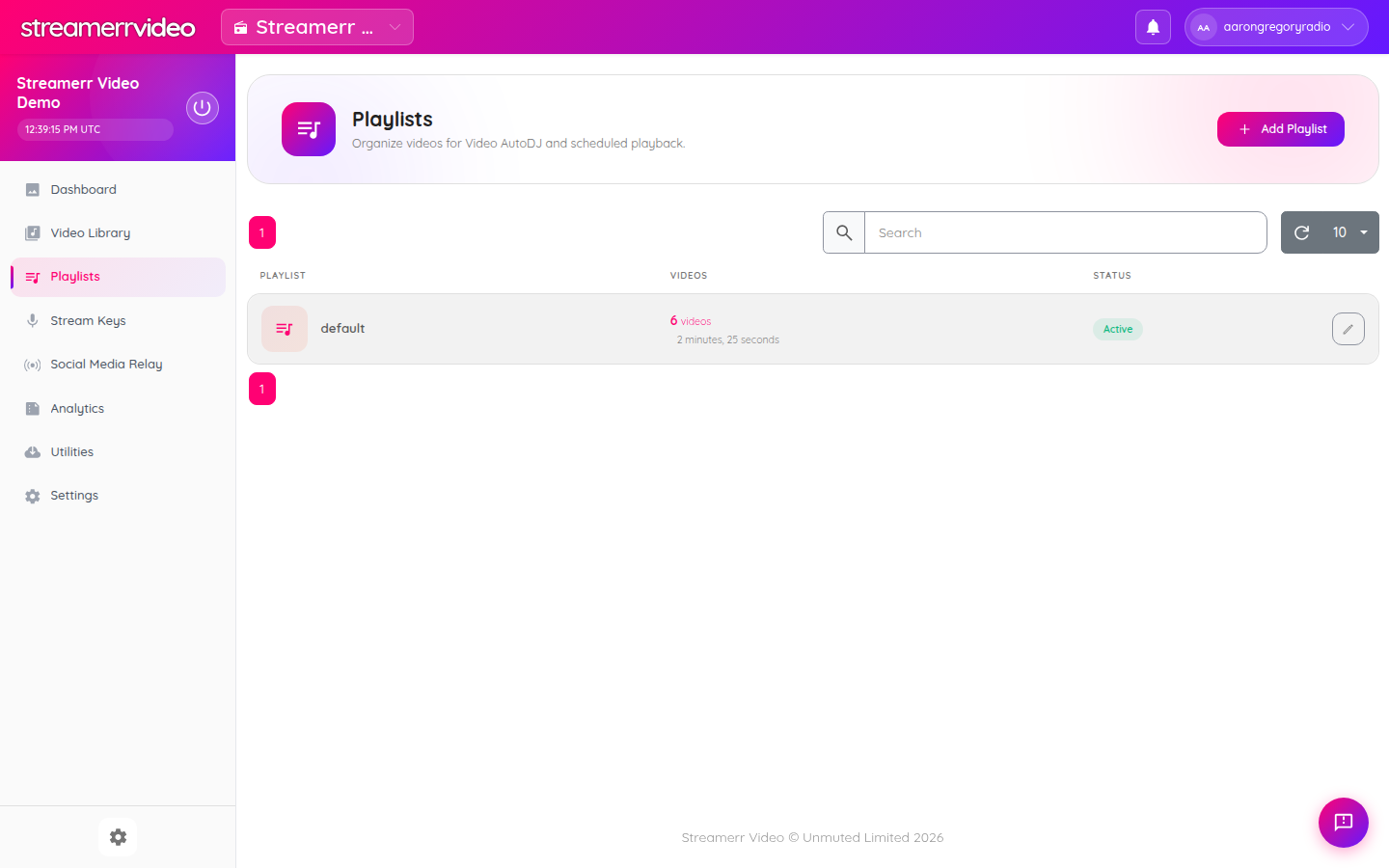
Open Playlists in the sidebar to manage this.
Recommended playlist setup
Create separate playlists for each content type. A typical TV channel might use:
| Playlist | Content | Playback order | Schedule idea |
|---|---|---|---|
| Main Rotation | Recorded programmes / filler | Shuffle or Random | All day (or unscheduled = always) |
| News Bulletins | News packages in order | Sequential | e.g. 08:00, 13:00, 18:00 |
| Advertisements | Ad spots / bumpers | Random or Sequential | Play every N videos |
| Evening Shows | Pre-recorded programmes | Sequential | Evening daypart |
| Overnight | Soft filler | Shuffle | Overnight hours |
1. Upload your content
- Go to Video Library
- Click Upload (or use SFTP for bulk uploads)
- Keep files organised with folders if helpful (News, Ads, Programmes)
Important: videos only air on AutoDJ after they are added to a playlist.
2. Create a playlist
- Open Playlists
- Click Add Playlist
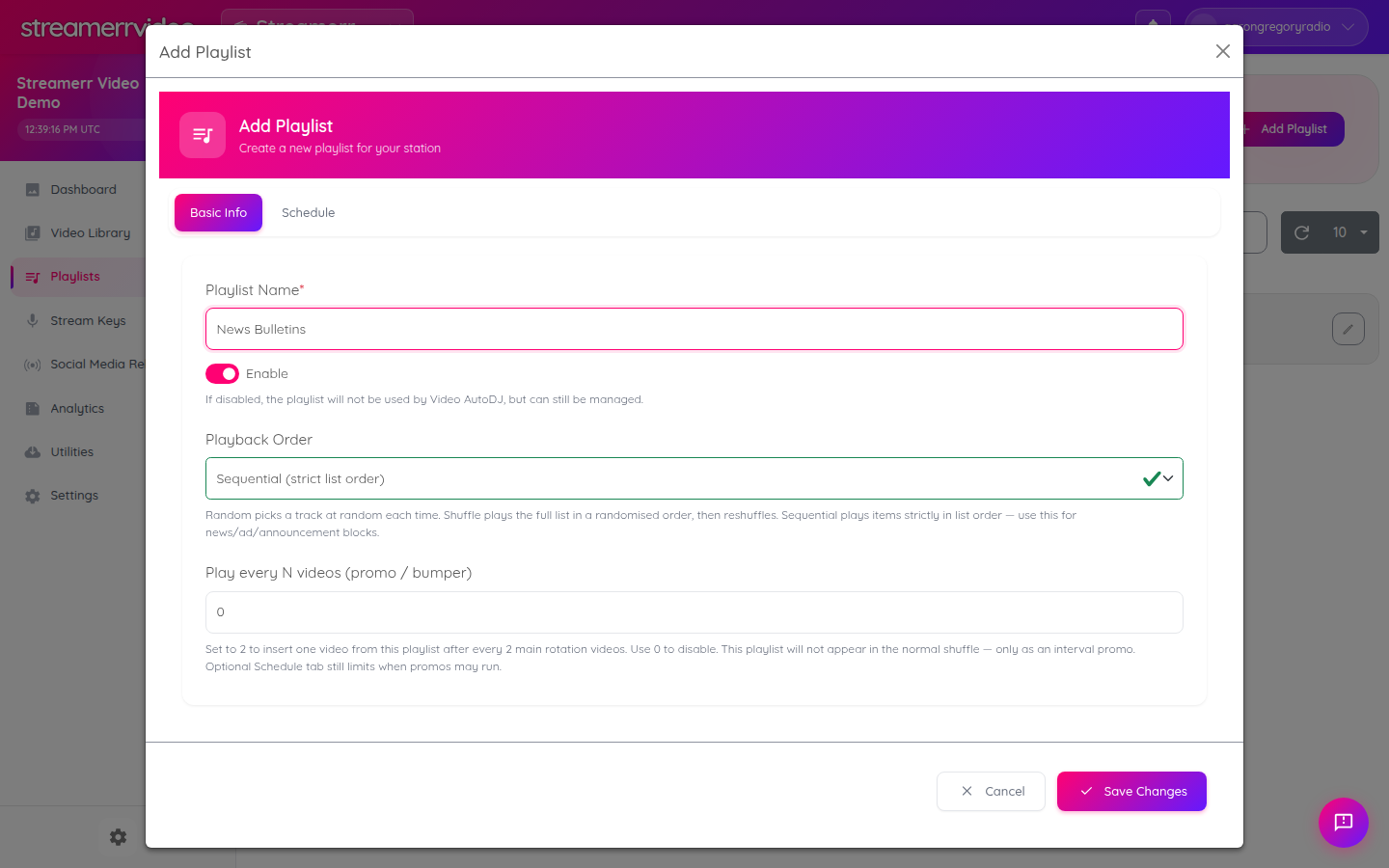
- On Basic Info:
- Give it a clear name (e.g. News Bulletins) - Leave Enable on - Choose a Playback Order
- Click Save Changes
- Return to Video Library, select the videos, and Add to Playlist
Playback order — which to use
- Sequential — plays in list order. Best for news blocks, ad pods, and programme parts that must air in a fixed order.
- Shuffle — randomises the full list, then reshuffles after a full pass. Good for general rotation.
- Random — picks independently each time. Good for ad pools where repeat order does not matter.
3. Schedule a timed programme block (news / recorded shows)
Use the Schedule tab when a playlist should only run at certain times.
- Edit the playlist
- Open the Schedule tab
- Click Add Schedule Item
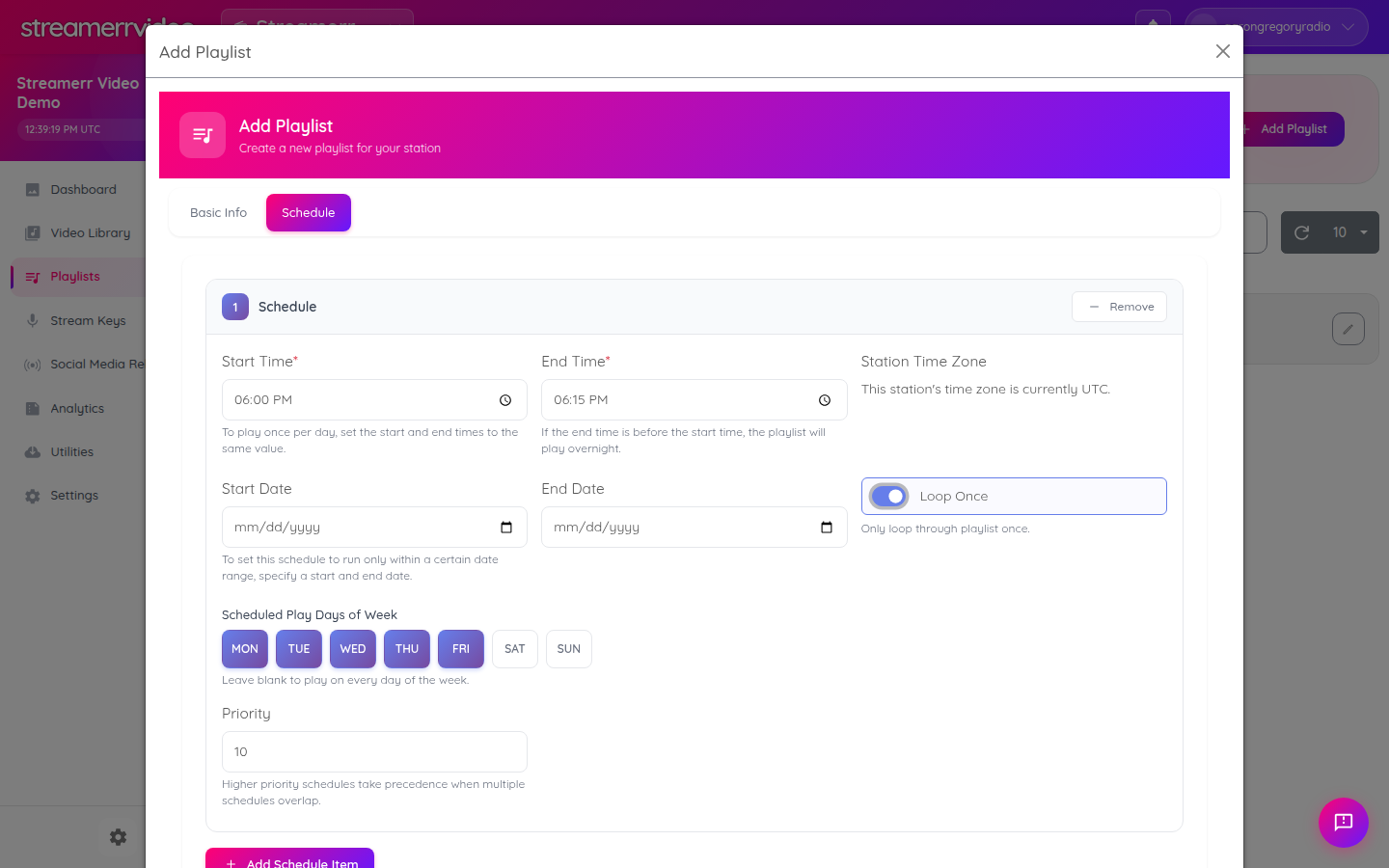
- Set:
- Start Time / End Time - Days of week (e.g. Mon–Fri) - Optional Start Date / End Date for limited campaigns - Loop Once if the block should play through once, not repeat for the whole window - Priority (higher wins when schedules overlap)
- Save
Example: weekday news at 18:00–18:15, loop once, priority 10:
Useful schedule rules
- Same start and end time = play once per day at that time
- End time before start time = overnight window
- Leave days blank = every day of the week
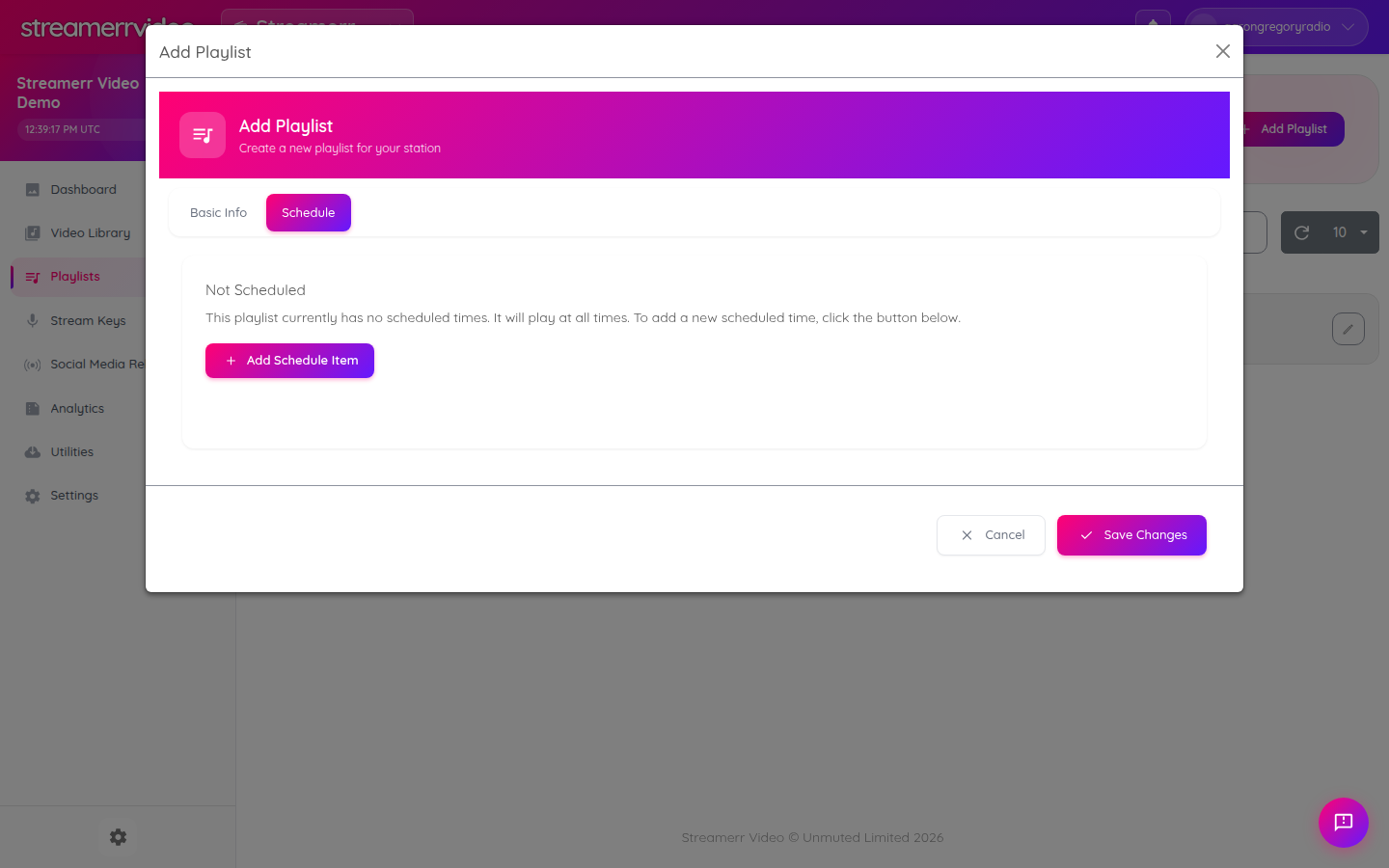
- No schedule items = playlist is eligible at all times
- Check your station timezone (shown on the Schedule tab)
If the Schedule tab is empty, AutoDJ treats the playlist as always available:
4. Schedule advertisements (promo / bumper inserts)
For ads between programmes, use Play every N videos instead of (or as well as) a hard clock time.
- Create an
Advertisementsplaylist - Set playback order to Random or Sequential
- Set Play every N videos to e.g.
3
(one ad after every 3 main-rotation videos)
- Optionally restrict when ads may run using the Schedule tab
- Add your ad clips to this playlist
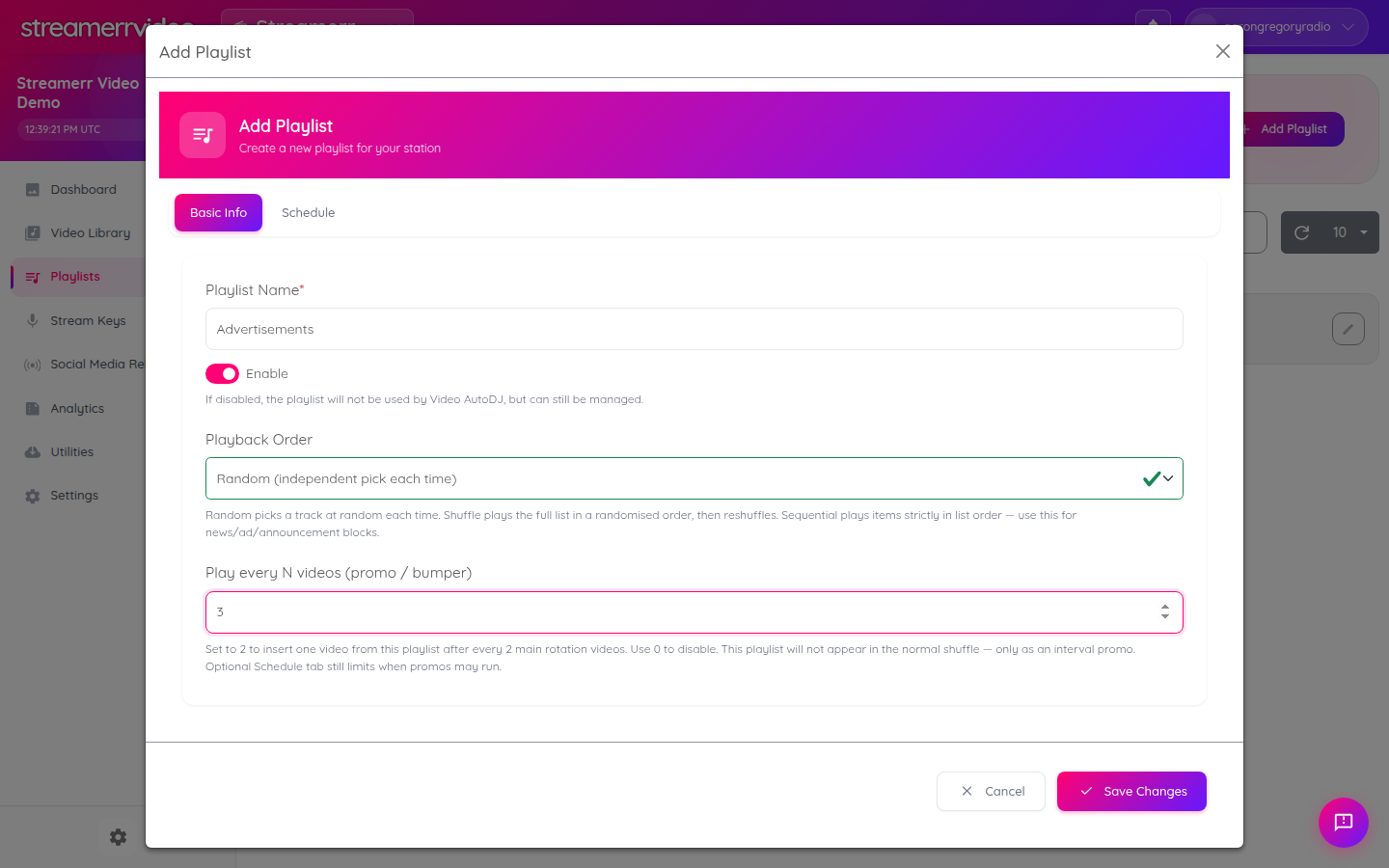
Promo playlists do not join the normal shuffle — they only insert on the interval you set.
5. Build an automatic daily playlist flow
A simple all-day pattern:
- Main Rotation playlist — unscheduled (or scheduled all day), Shuffle
- Advertisements playlist — Play every 3–4 videos
- News Bulletins playlist — Sequential, scheduled at bulletin times, higher priority, Loop Once
- Optional daypart playlists for morning / evening programmes
AutoDJ will:
- Play main rotation most of the time
- Insert ads on the interval
- Jump to news/programmes when their schedule + priority say so
Check Utilities → Video Queue to confirm what is coming up next.
6. Live broadcasts
Live TV is separate from playlist schedules:
- Open Stream Keys and copy the RTMP server + stream key
- In OBS, set Service to Custom... and paste those values
- Click Start Streaming in OBS at the live show time
- When the live source is connected, it takes over the channel
- When you stop streaming, AutoDJ resumes from your playlists
Full walkthrough: Go Live with OBS.
Optional: limit when live keys can connect
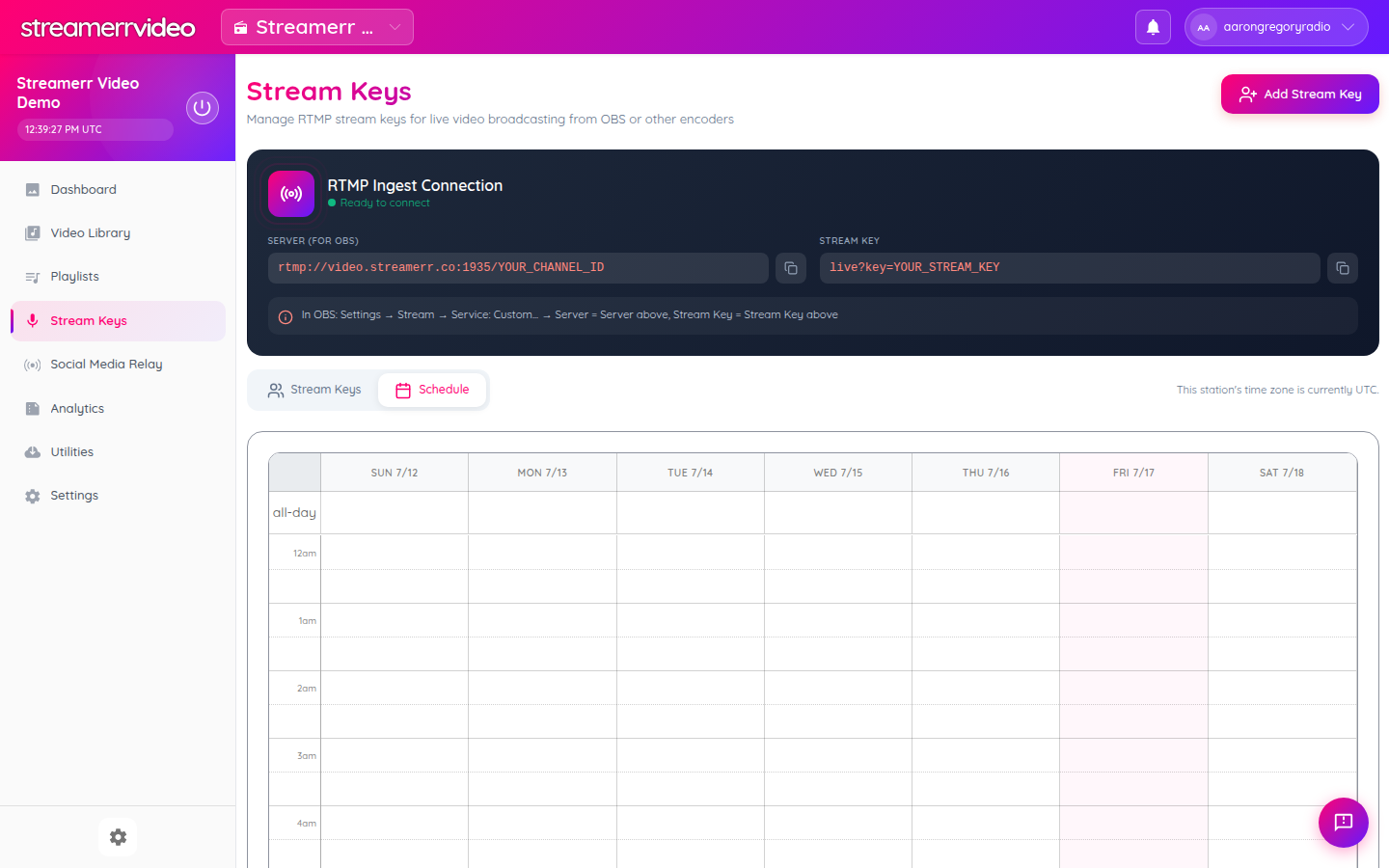
On Stream Keys → Schedule, you can restrict when a stream key is allowed. Use this for presenter windows (e.g. only evenings), not for AutoDJ programme scheduling.
Example daily TV day
| Time | What airs | How |
|---|---|---|
| Overnight | Filler / overnight playlist | Scheduled overnight hours |
| 08:00 | News bulletin | Sequential playlist, Loop Once, high priority |
| Daytime | Recorded programmes + ads | Main rotation + Play every N ads |
| 13:00 | News bulletin | Same news playlist schedule |
| 18:00 | News bulletin | Same news playlist schedule |
| 19:00–21:00 | Live show | OBS live ingest |
| After live ends | AutoDJ resumes | Main rotation / evening playlist |
Checklist for the client’s content types
- News bulletins → Sequential playlist + timed Schedule + Loop Once + higher Priority
- Advertisements → Playlist with Play every N videos (optional Schedule window)
- Recorded programmes → Playlist(s) with Sequential or Shuffle + daypart schedules
- Live broadcasts → OBS + Stream Keys (optional stream-key Schedule)
- Automatic playlists → Enabled playlists in AutoDJ; verify in Video Queue
Troubleshooting
- Nothing is playing — videos must be in an enabled playlist; check Video Queue
- News never airs — confirm Schedule times use the station timezone and Priority is higher than the main rotation
- Ads never appear — Play every N videos must be greater than 0, and the ad playlist must be enabled
- Wrong order — use Sequential and reorder items in the playlist / library view
- Live does not take over — confirm OBS is connected; see the OBS guide’s troubleshooting section
Related guides: Video Library & AutoDJ, Go Live with OBS, Logo Overlay.