Once your channel is on air (live or AutoDJ), share it with a public page or drop the player onto your own site.
Public page
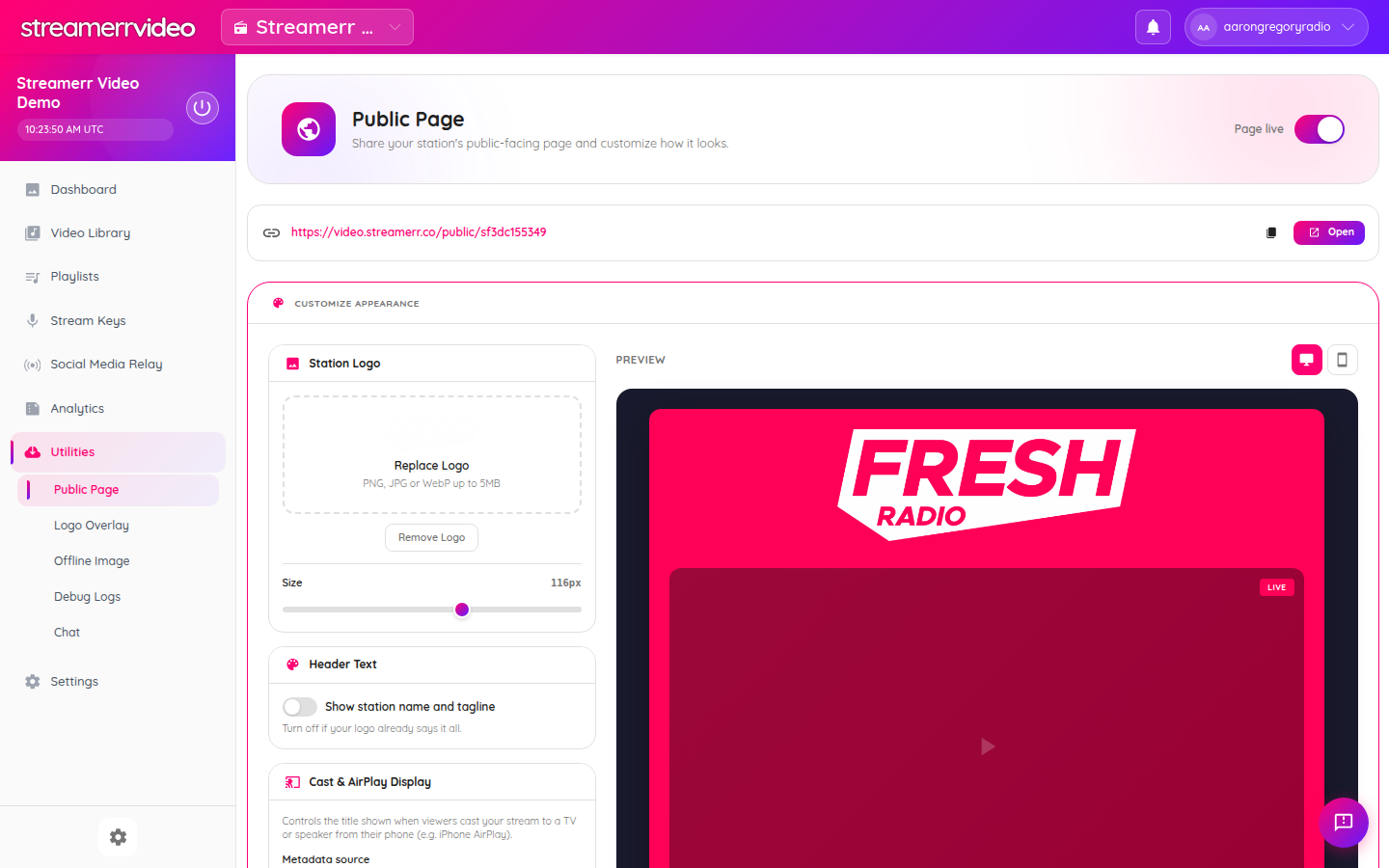
- Open your channel.
- Go to Utilities → Public Page.
- Copy the public URL (format:
https://video.streamerr.co/public/YOUR_CHANNEL_ID). - Customise appearance:
- Station logo - Header text on/off - Cast / AirPlay title metadata - Background, text, and accent colours
- Click Save Changes and use Open to preview.
Embed player
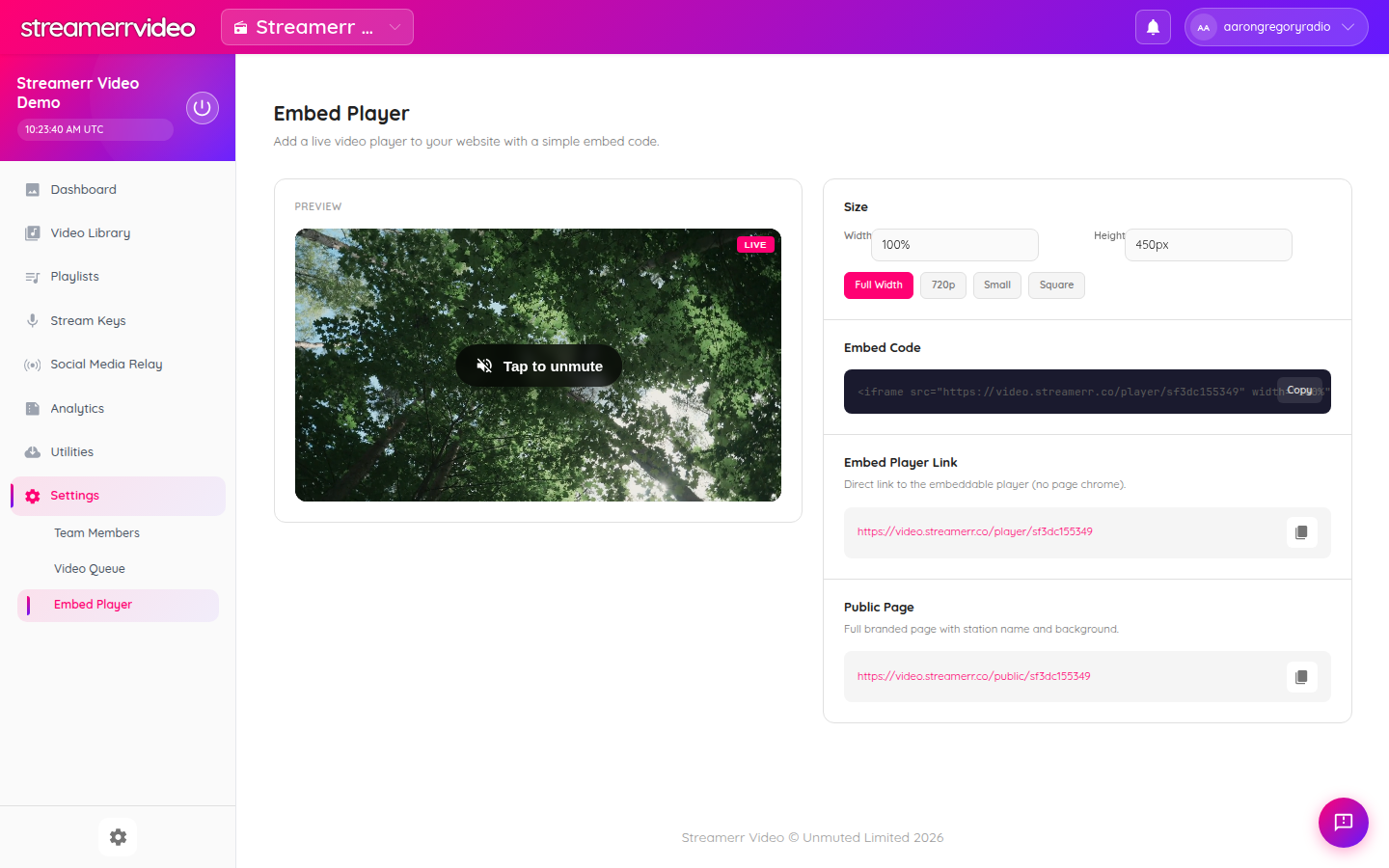
- Go to Utilities → Embed Player.
- Pick a size preset (Full Width, 720p, Small, Square) or set custom width/height.
- Copy the iframe embed code.
- Paste it into your website HTML.
Example embed pattern:
<iframe src="https://video.streamerr.co/player/YOUR_CHANNEL_ID" width="100%" height="450px" frameborder="0" allow="autoplay; fullscreen; picture-in-picture; encrypted-media" allowfullscreen style="border: none; border-radius: 12px;"></iframe>You also get:
- Embed Player Link — direct player URL without page chrome
- Public Page — full branded watch page
Offline image
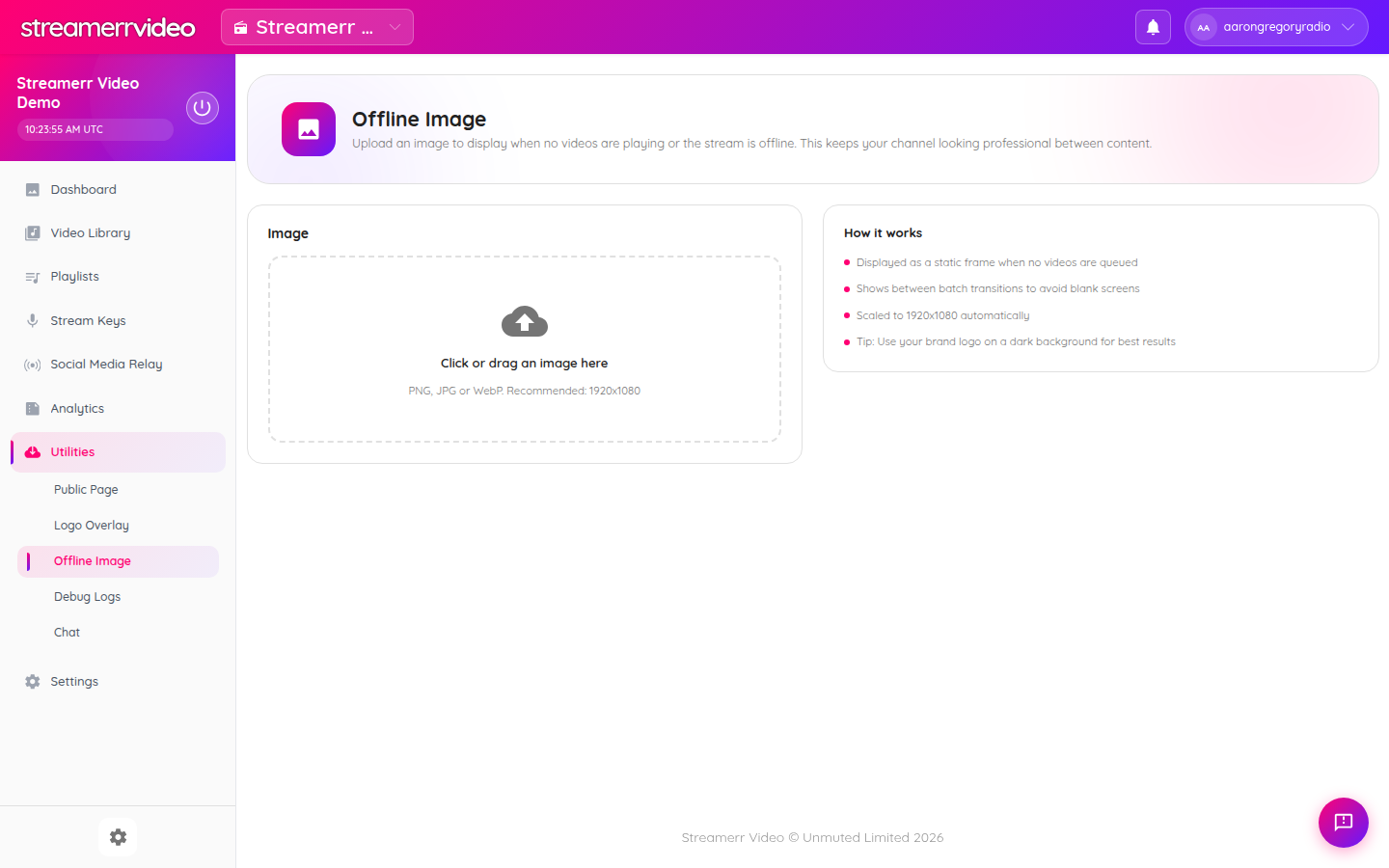
Under Utilities → Offline Image, upload artwork shown when the channel is not broadcasting. This keeps the public page and player looking intentional between shows.
Team members
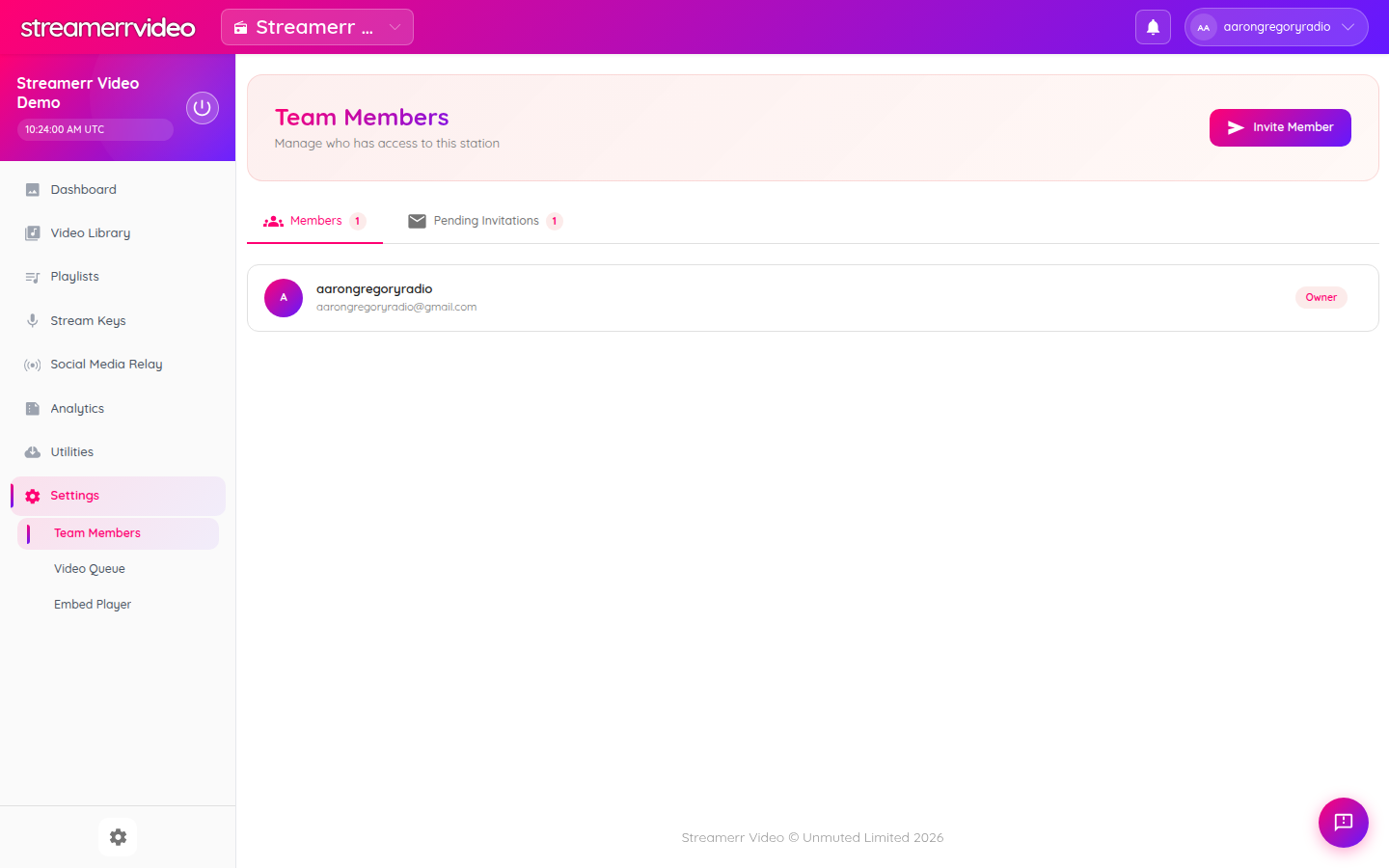
Invite collaborators under Utilities → Team Members so producers and presenters can help without sharing your main password.
Analytics
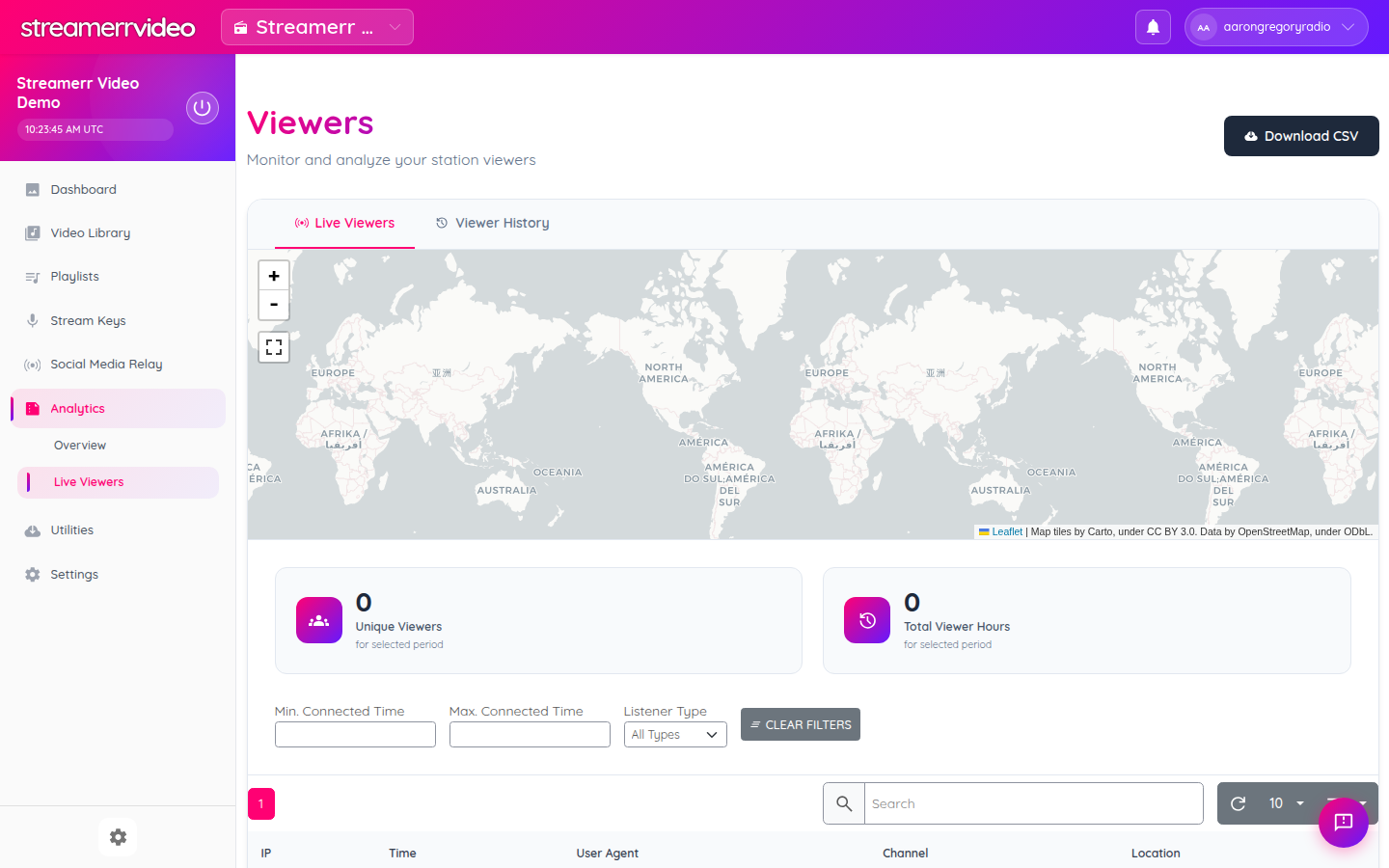
Use Analytics → Overview and Live Viewers to see watch time, geography, and who is connected right now.