


Logo Overlay keeps your station brand on screen during playback. Upload a PNG with transparency, choose a corner, and set size/opacity.
1. Open Logo Overlay
- Sign in and open your channel.
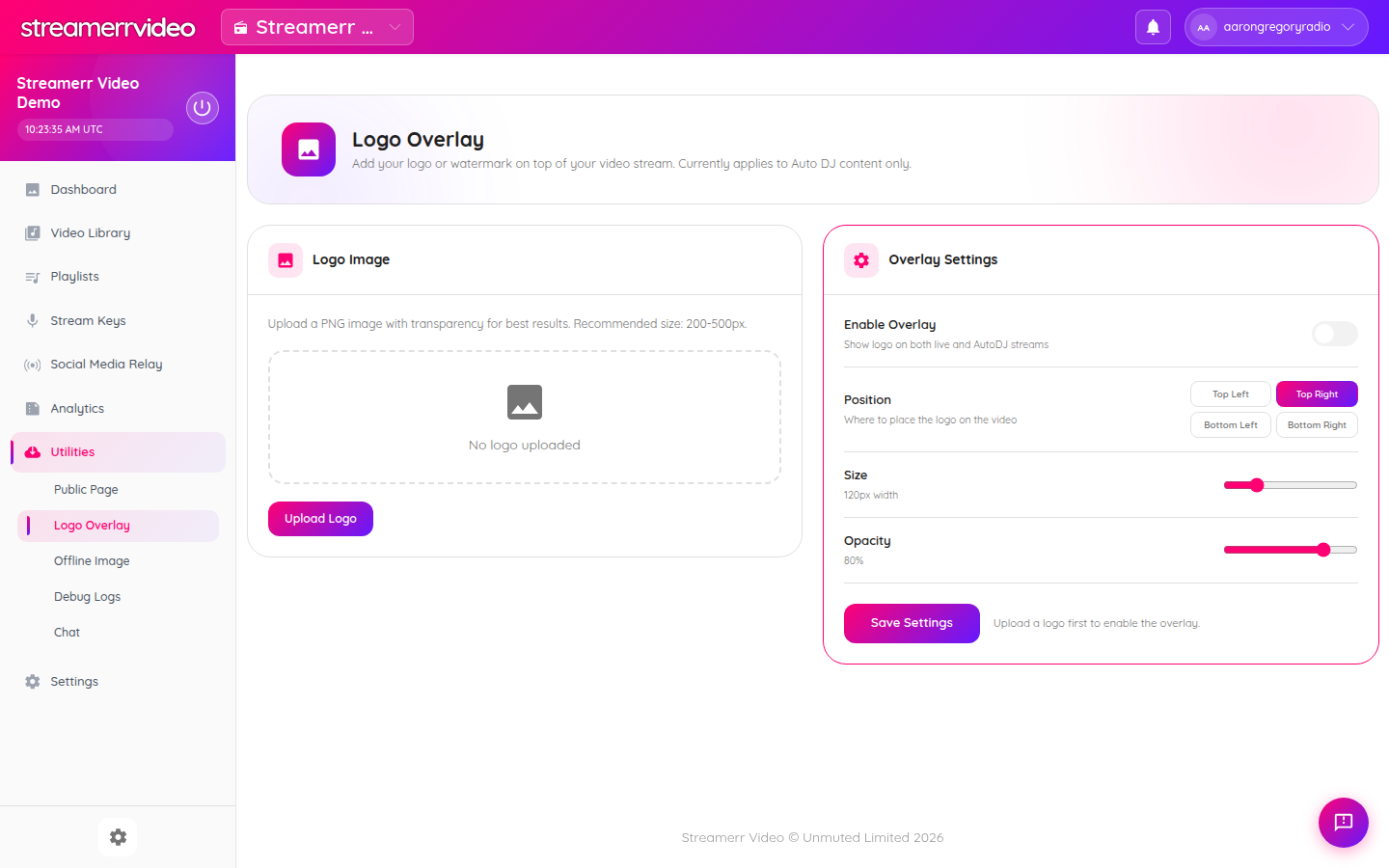
- Go to Utilities → Logo Overlay (under the Utilities section in the sidebar).
2. Upload your logo
- Click Upload Logo.
- Choose a PNG with transparency for best results.
- Recommended size: roughly 200–500px wide.
3. Configure the overlay
- Turn on Enable Overlay.
- Choose a Position: Top Left, Top Right, Bottom Left, or Bottom Right.
- Set Size (for example 120px width).
- Set Opacity (for example 80%).
- Click Save Settings.
Notes
- Overlay currently applies to Auto DJ content (and can be set to show on live and AutoDJ depending on the enable options shown on the page).
- If controls are disabled, upload a logo first — the page will prompt you.
- Pair this with your Public Page branding so the watch page matches the on-stream logo.
You can also set an Offline Image under Utilities for what viewers see when the channel is not broadcasting.