


Social Media Relay pushes your Streamerr Video channel out to other platforms at the same time — so one live source (OBS or AutoDJ) can reach YouTube, Twitch, Facebook, and more.
1. Open Social Media Relay
- Sign in and open your channel.
- Click Social Media Relay in the sidebar.
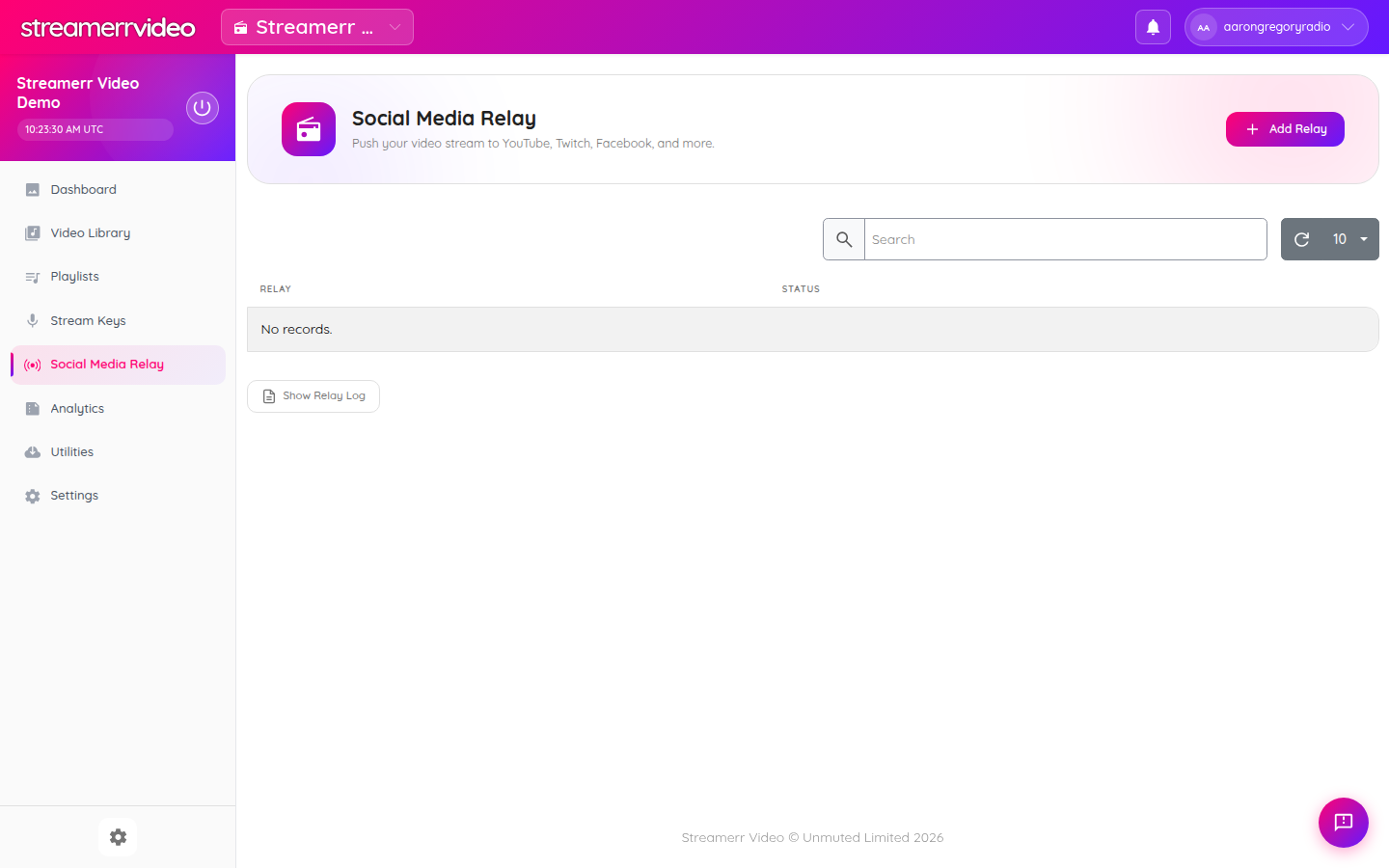
2. Add a relay
- Click Add Relay.
- Choose the destination type (YouTube, Twitch, Facebook, or a custom RTMP target, depending on options shown).
- Paste the RTMP server URL and stream key from that platform’s creator tools.
- Save / enable the relay.
Repeat for each platform you want to hit.
3. Go live as usual
Start your broadcast from OBS (or let AutoDJ run). Streamerr Video sends the programme to your viewers and to every enabled relay.
Use Show Relay Log on the Social Media Relay page if a destination fails to connect — common causes are an expired stream key, a destination that is not set to “live”, or a key pasted incompletely.
Tips
- Create destination stream keys that are only used for Streamerr Video so you can revoke them easily.
- Check each platform’s bitrate/resolution limits — if a relay is unstable, lower your OBS bitrate slightly.
- Relays are separate from your Streamerr Video public page and embed player; viewers can still watch natively on Streamerr Video while social copies run.
Related: Go live with OBS and Share & embed.