


Streamerr Video accepts a standard RTMP ingest, so you can go live from OBS Studio, Wirecast, vMix, or any encoder that supports custom RTMP.
1. Open Stream Keys in Streamerr Video
- Sign in at https://video.streamerr.co.
- Open your channel with Manage Channel.
- In the left sidebar, click Stream Keys.
You will see your RTMP Ingest Connection with:
- Server (for OBS) — looks like
rtmp://video.streamerr.co:1935/YOUR_CHANNEL_ID - Stream Key — looks like
live?key=YOUR_STREAM_KEY
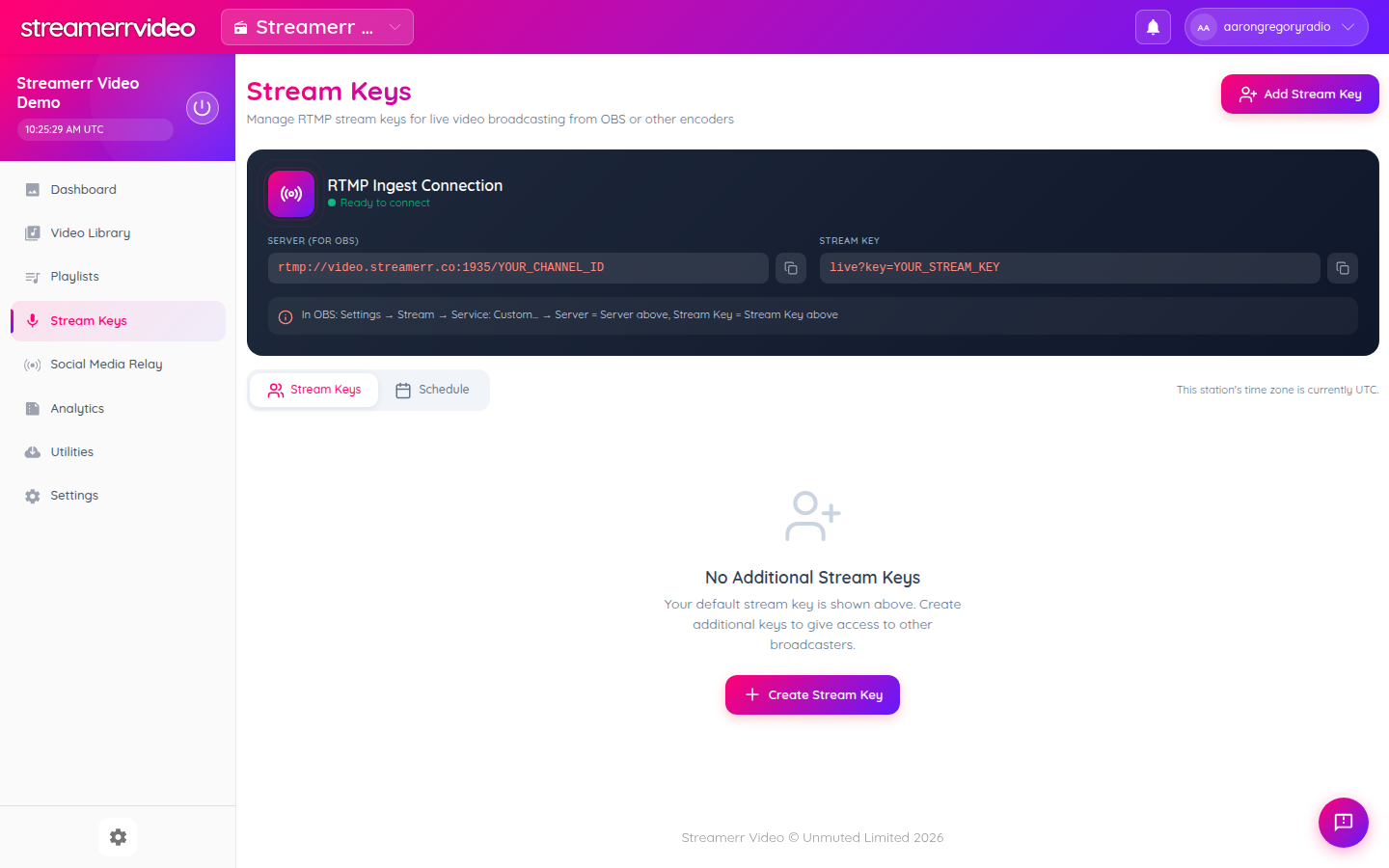
Use the copy buttons next to each field so you do not mistype them. Keep your stream key private — anyone with it can broadcast to your channel.
2. Configure OBS Studio
- Open OBS Studio.
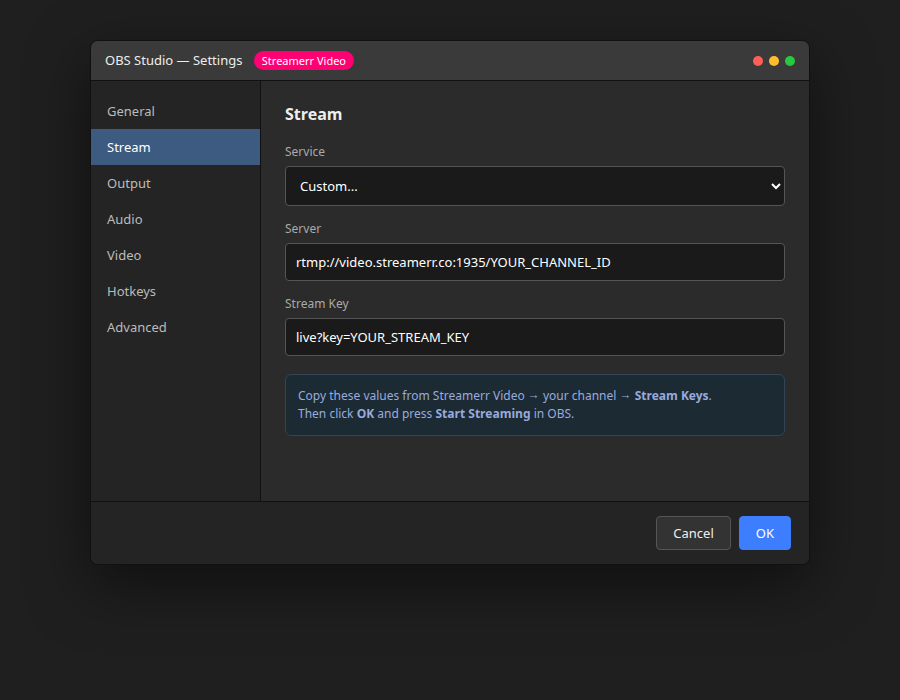
- Go to Settings → Stream.
- Set Service to Custom....
- Paste the Streamerr Video Server into the Server field.
- Paste the Streamerr Video Stream Key into the Stream Key field.
- Click OK.
3. Recommended OBS output settings
These are a solid starting point for most Streamerr Video plans:
- Output mode: Advanced
- Encoder: Hardware (NVENC / QuickSync / VideoToolbox) if available, otherwise x264
- Rate control: CBR
- Bitrate: 2500–6000 Kbps depending on your plan quality (720p vs 1080p+)
- Keyframe interval: 2 seconds
- Audio bitrate: 160–320 Kbps
Match your canvas resolution to what you want viewers to see (for example 1280×720 or 1920×1080).
4. Start streaming
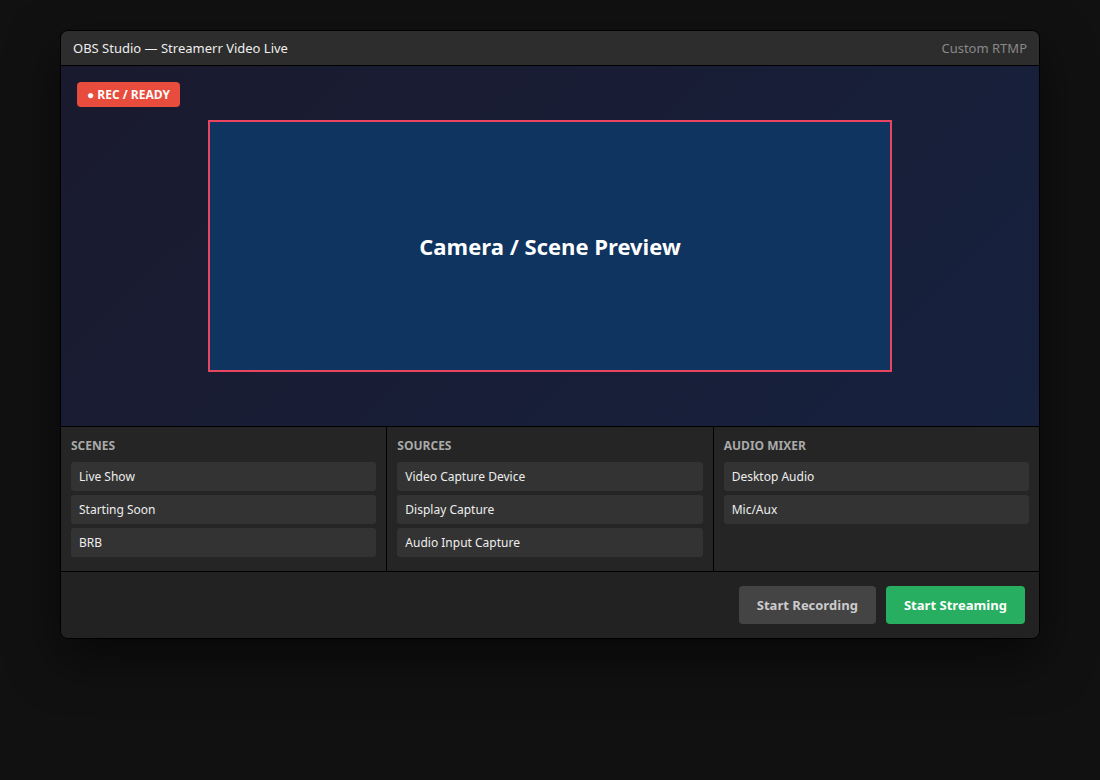
- Build your scene in OBS (camera, display capture, overlays, mic).
- Click Start Streaming.
- Return to your Streamerr Video channel dashboard — status should move to ON AIR when the ingest is healthy.
5. Extra stream keys (optional)
On the Stream Keys page you can Add Stream Key / Create Stream Key to give separate keys to other presenters. That way you can revoke one key without rotating the main channel key.
There is also a Schedule tab if you want to time-limit when a key is valid.
Troubleshooting
- Not connecting — confirm Service is Custom, and that both Server and Stream Key were copied in full (including
live?key=). - Connected but no video — check OBS is sending video (preview is active) and that you clicked Start Streaming, not only Start Recording.
- Poor quality / dropping frames — lower bitrate, use a hardware encoder, or reduce resolution.
- AutoDJ still playing — a live RTMP source typically takes priority; if AutoDJ remains on air, use Stream Health Check from the channel dashboard and confirm the encoder is connected.
Next: set up Social Media Relay to push the same live stream to YouTube, Twitch, or Facebook.